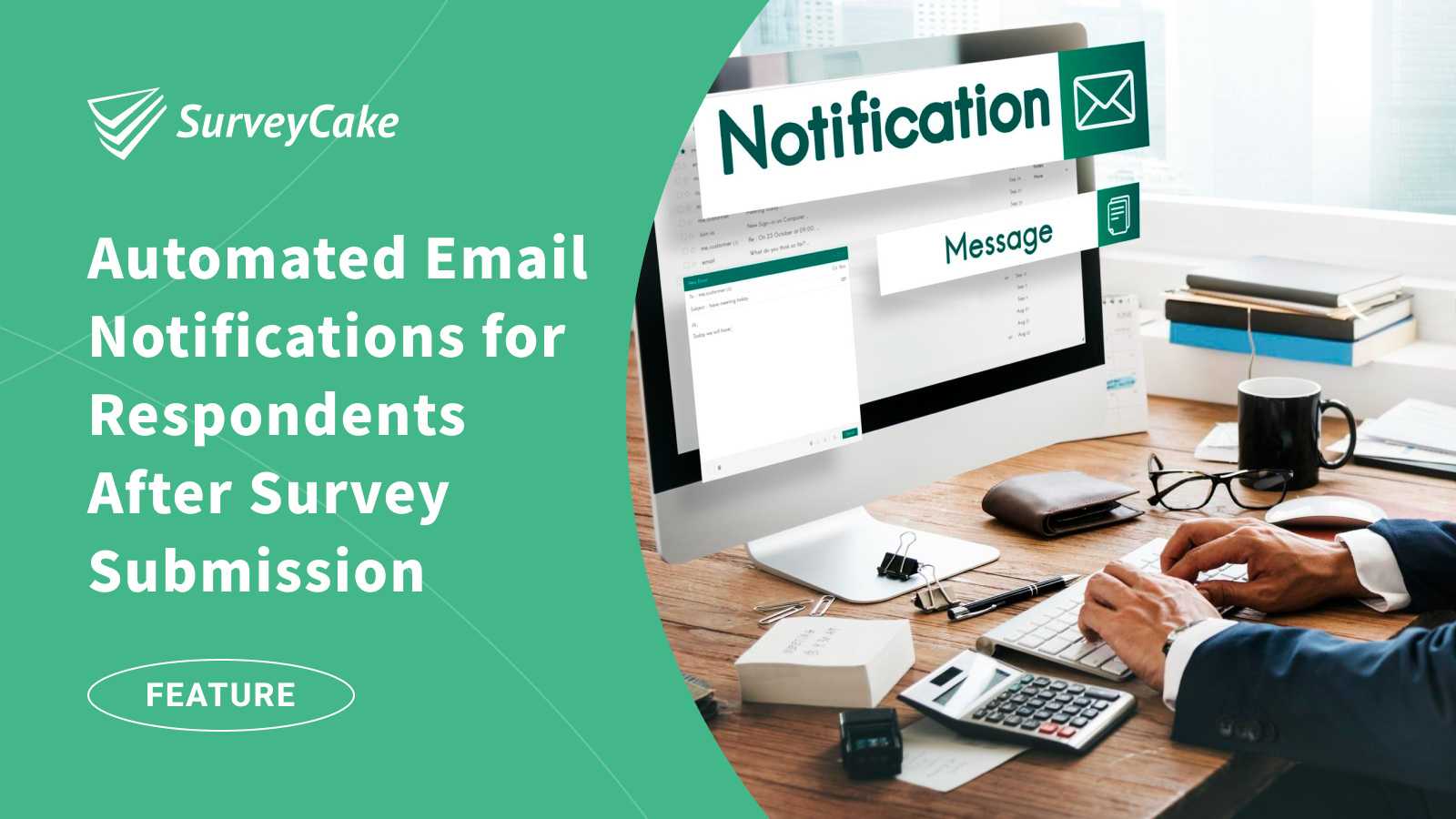
Would you like respondents to receive the complete survey responses immediately after filling out the survey as a backup confirmation?
Take time-limited event registration as an example. In the past, you might have had to manually filter through successfully registered respondents within the time frame and then email relevant information to them. Now, with SurveyCake you can create registration forms that automates the entire registration process. Once respondents successfully register within the specified time, the system automatically sends them the complete survey responses. Once the designated registration time is exceeded, the form automatically closes and does not accept any further responses.
Now, let’s introduce how to set up the “Auto Email Notification” feature.
Essential for event registration and dining reservations, allowing respondents to confirm and back up their responses instantly
I.Create a SurveyCake survey
First, you need to log in to SurveyCake and create a survey in the dashboard.
Of course! You can also use templates to quickly start building a survey. SurveyCake backend system provides eight scenarios of survey templates. Through the “Apply Template” function, you can immediately create a survey identical to the template! (NB: you can modify the content and images in the form according to your needs)

💡Reminder: Remember to enable “Email Text Verification” in the “Single Line text” question.
To ensure that the system can successfully send survey responses to respondents, we must confirm that the email entered by the respondent is a valid mailbox. Therefore, when designing the survey, don’t forget to create a “Single Line text” question to collect respondents’ email addresses, and enable “Email Text Verification” in the question to smoothly send the survey responses to the respondents!
1. Create a “Single Line Text” question to collect respondents’ email addresses

2.Enable Email Text Verification

After creating the survey content, proceed to the backend of the survey and enable the feature settings to complete!
II. Click on the “Notification” on the toolbar at the top of the survey backend

III. Enable the “Respondent Email Notification” setting and select the verified single-line text question (Email question)

Find “Respondent Email Notification” under the “Notification” page, turn on the feature, and then select the validated single-line text question. Then, you are all set!
After respondents submit the survey, the system will automatically send the survey responses to the email address provided by the respondent.
Give respondents more peace of mind and protection, reducing additional disputes!
In time-limited and limited-quantity events such as registration or reservations, respondents often are uncertain whether they have successfully registered or forget the content they previously filled out. Through auto email notification, not only can survey responses be used as backup confirmation, but it can also help respondents to review their previous responses, reducing more communication time and unnecessary disputes.
Click here to register for FREE, and through “Email Automatic Notification” features, make the respondent experience more intimate and automated.